
How to Add and Edit Custom Fields in GoHighLevel Forms
Updated February 25, 2025
Managing custom fields in GoHighLevel forms used to require multiple steps through a separate modal, slowing down your build process. This guide shows you how to use the Quick Add feature to drag, drop, configure, and save custom fields directly within your forms and surveys.
Quick Add Custom Fields:
Before, adding custom fields involved several steps using the Add Custom Field modal. Now, with Quick Add, you can simply drag and drop custom fields directly into the form for a faster and smoother experience.
Custom Fields which we can be draggable now:
- Radio Select
- Single and Multi Dropdown
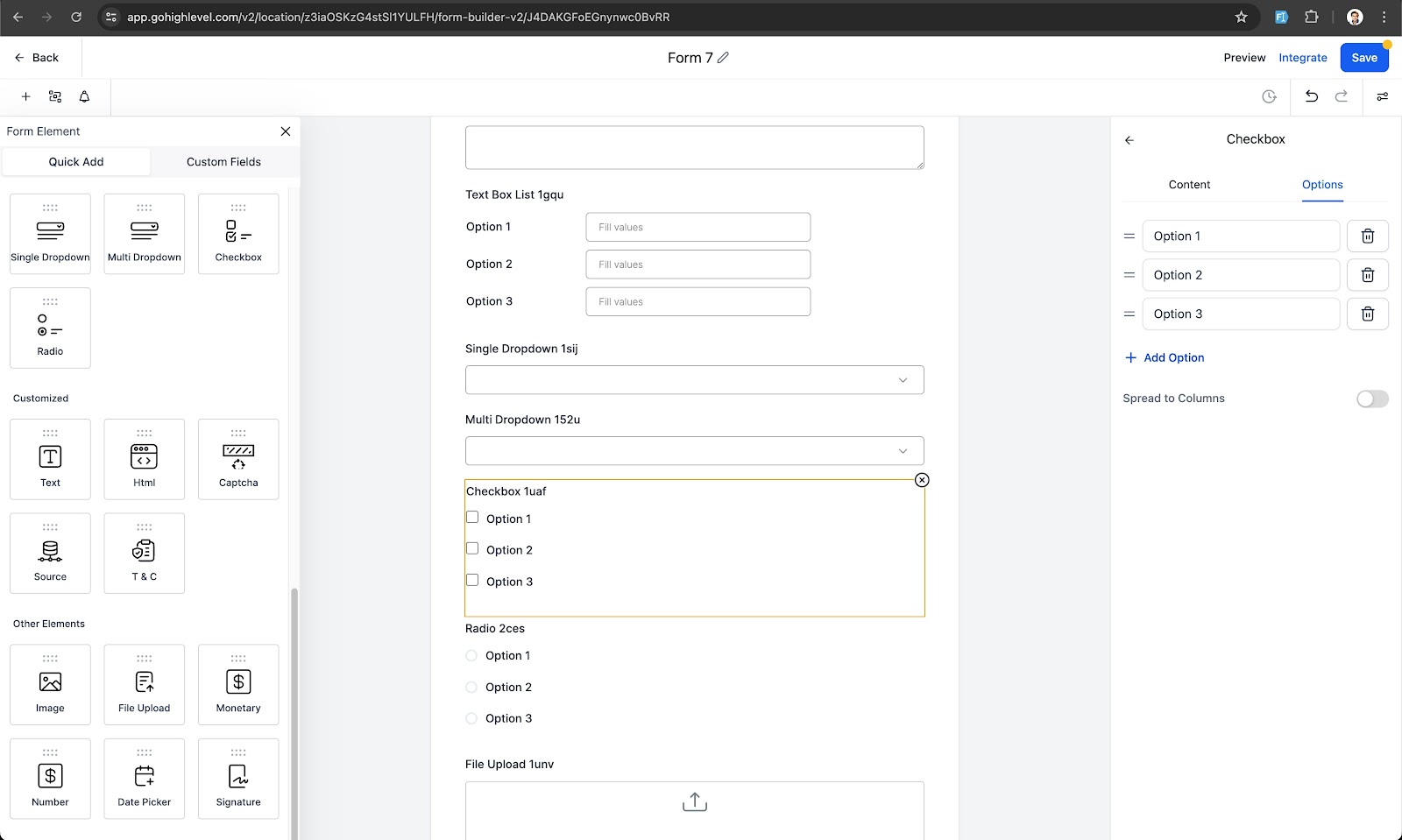
- Checkbox
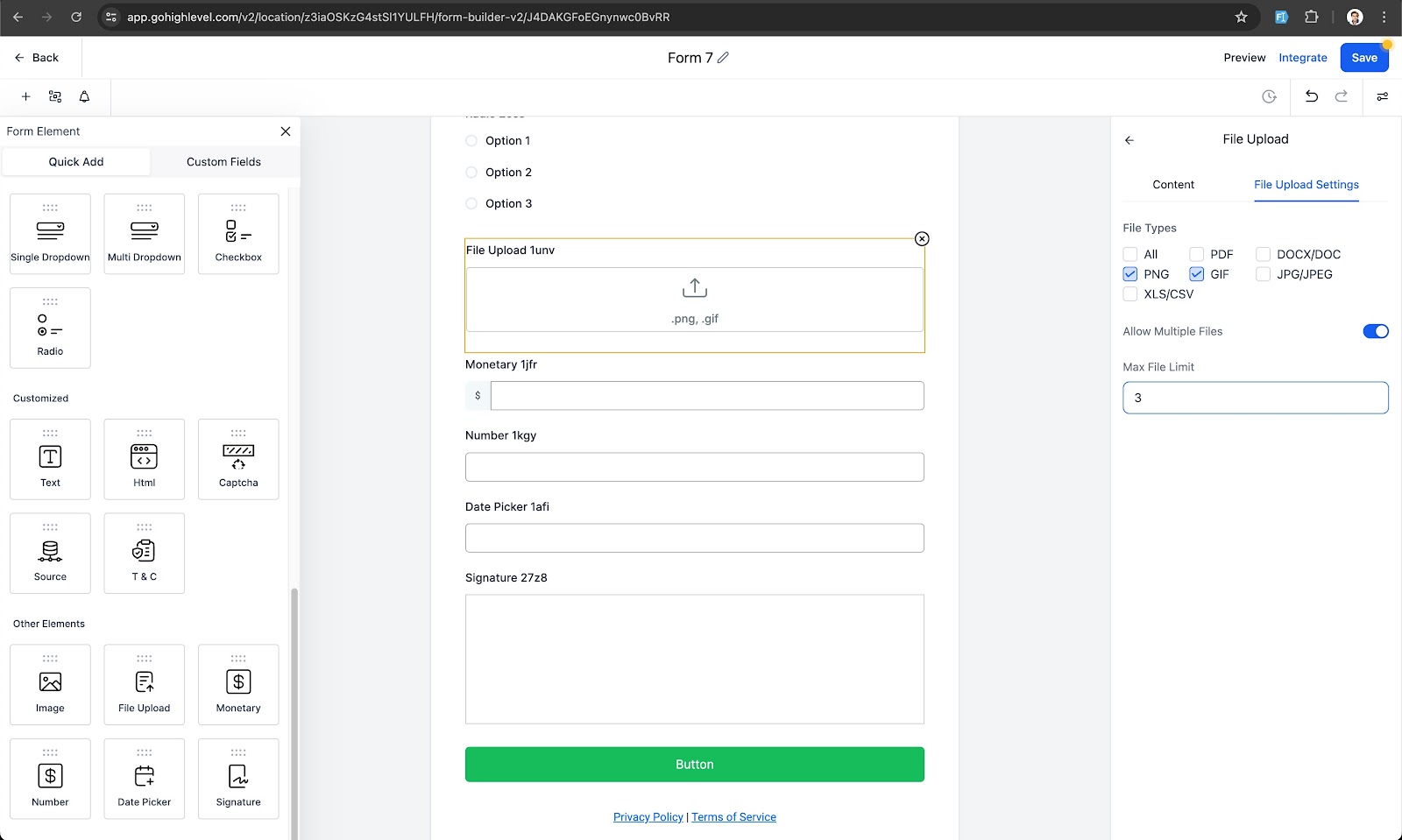
- File upload
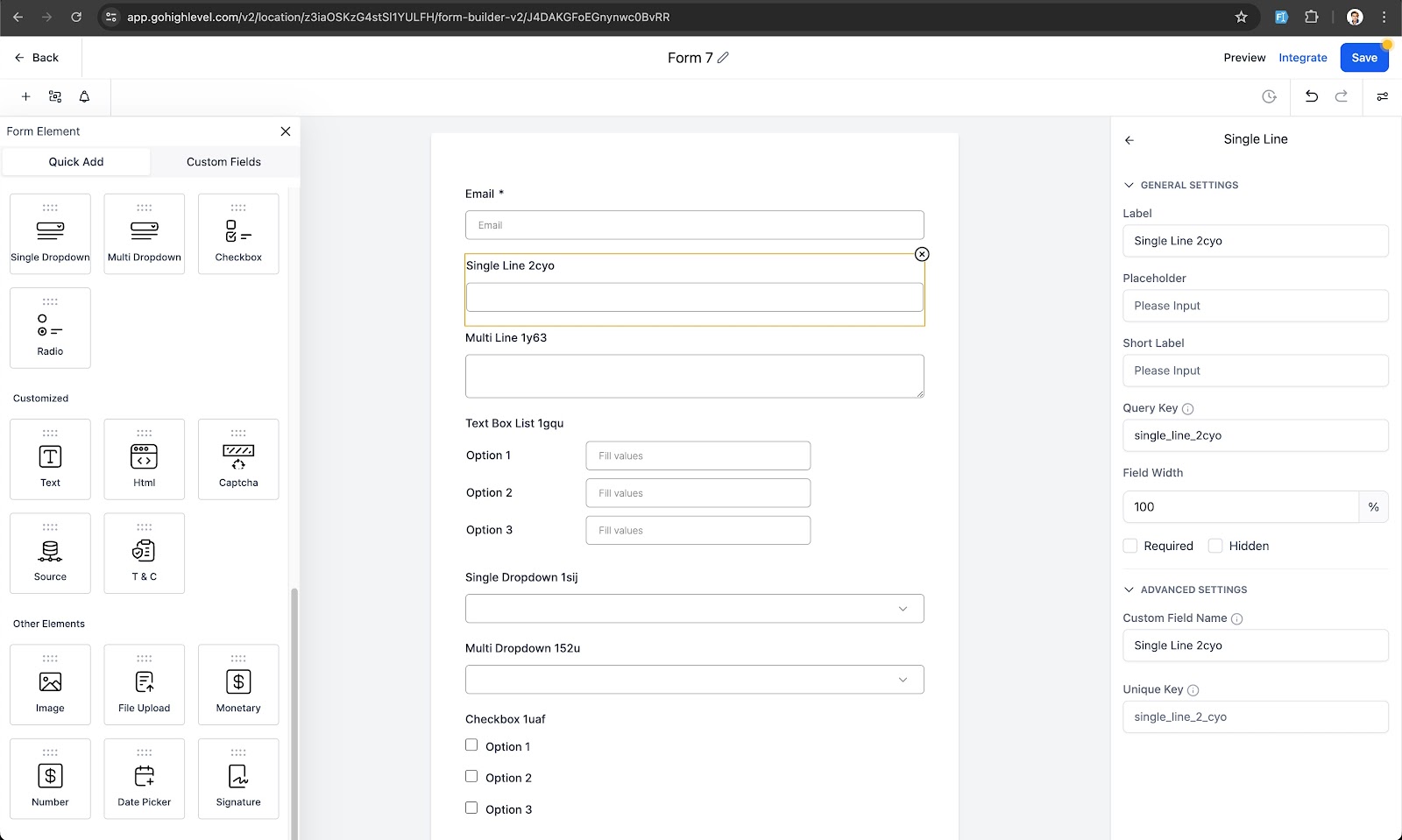
- Single Line
- Multi line
- Textbox List
- Date picker
- Number
- Monetary
Customization Options:
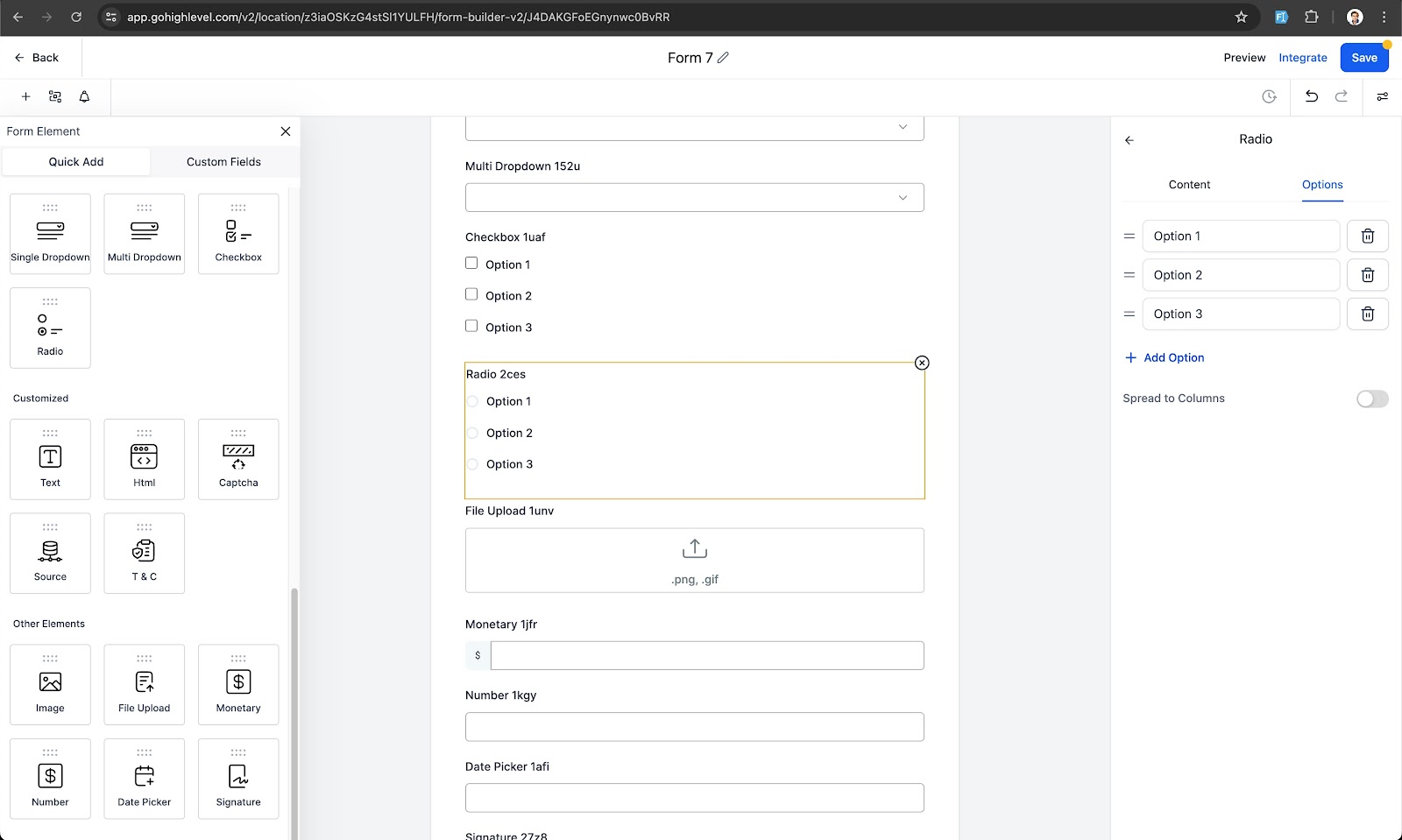
Modify settings for dropdowns, radio buttons, and checkboxes, including file input choices for upload fields. Define custom field names and assign unique keys.
Simplified Workflow:
Saving the form/survey will save the custom fields, making them available across all places.
Editing Capabilities:
You can edit properties of newly created or existing custom fields, such as customizing options (editing, ordering, and deleting), and file input options.
Field Locking:
After saving the form/survey, the custom field name and unique key are locked. They can be edited from the custom fields section.
How It Works
Drag and Drop:
Drag and drop the desired field into the form.
Customize:
Customize the options for dropdowns, radio buttons, and checkboxes, or file input options for file upload fields. Set the custom field name and unique key if needed.
Save:
Save the form/survey to save the custom fields, making them available across all places.
Edit:
Edit newly created or existing custom field properties from the custom fields section and save the form/survey.
Why This Feature?
The Quick Add Custom Fields feature streamlines the process of managing custom fields, making it faster and more intuitive. By enabling users to add fields instantly as needed, it enhances workflow efficiency and simplifies the overall user experience.
Keep learning